User Guide
Master the shadows with this step-by-step walkthrough.
Master the shadows with this step-by-step walkthrough.
When you first open Rss Viewer, you'll be greeted by the main dashboard. This is your command center.
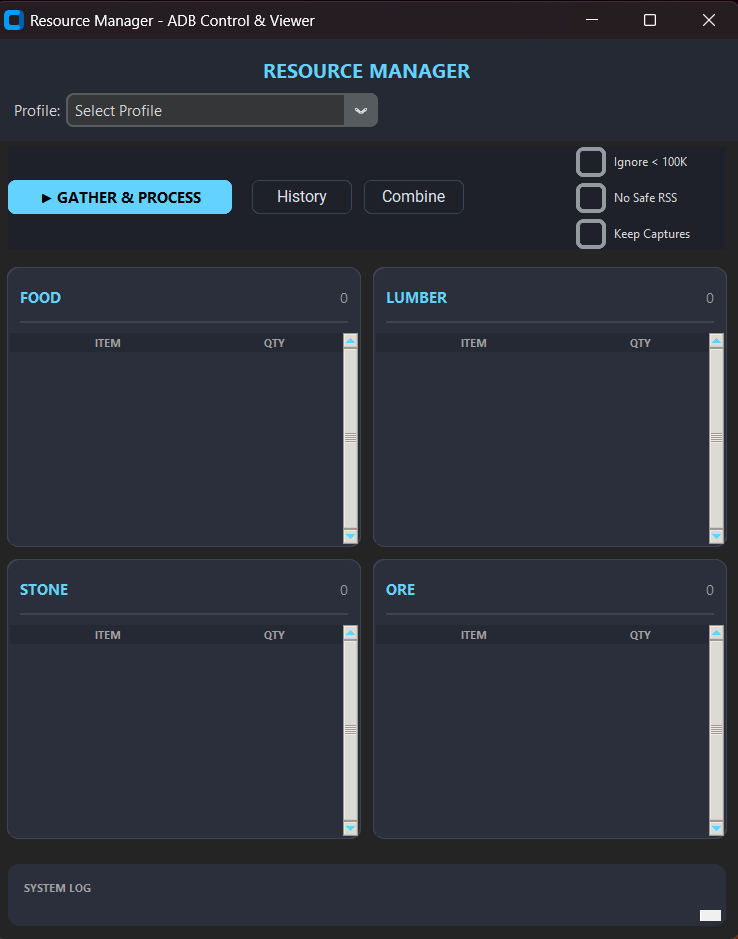
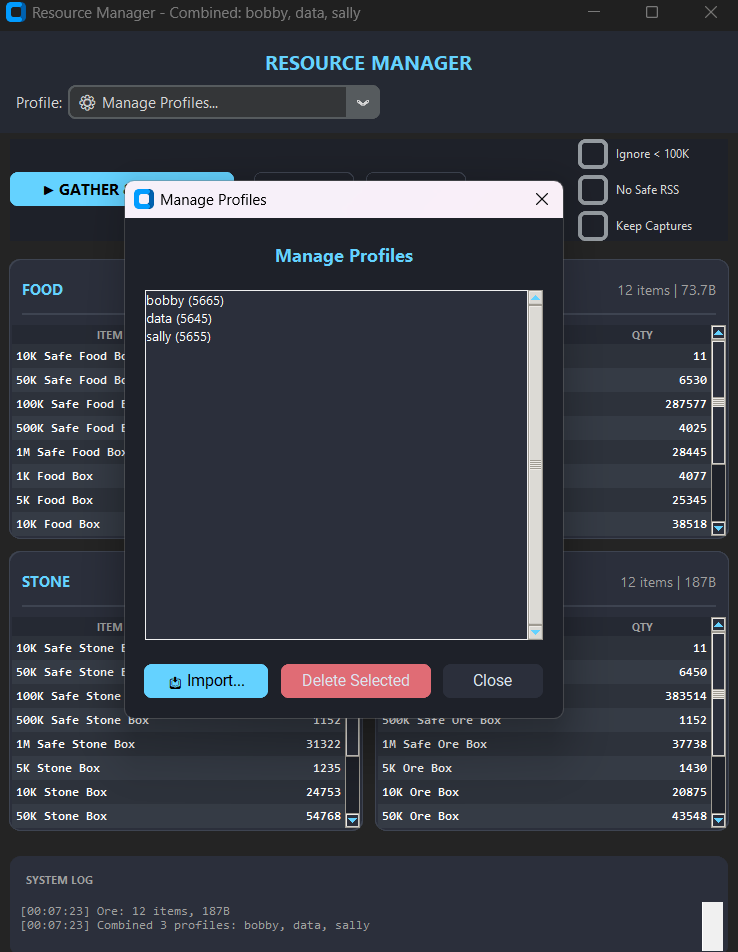
The first thing you'll want to do is add your profiles. This allows the viewer to connect to your instances.
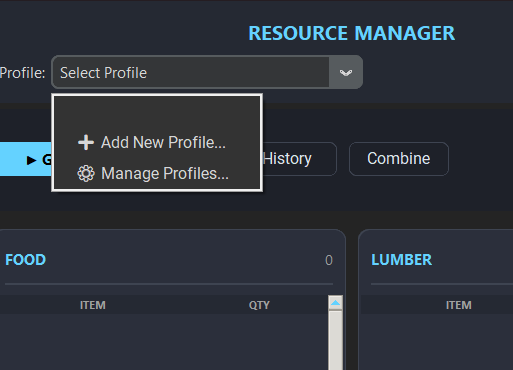
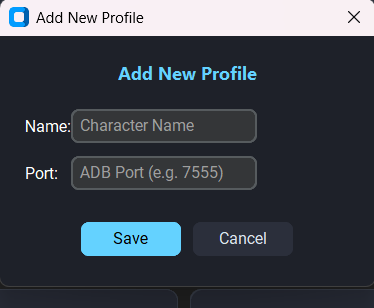
Enter a unique name and the specific port number for each instance you wish to track.
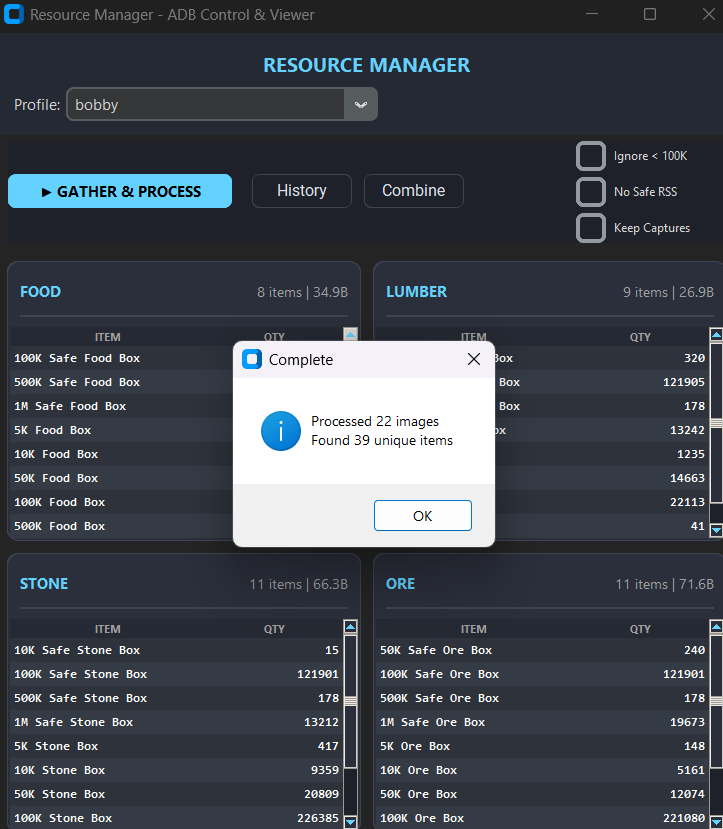
Once profiles are set, click "Gather and Process". This operation typically takes 1-2 minutes to complete as it scans for data.
When the scan is finished, you'll see a complete breakdown of the resources found, with all numbers clearly displayed.
Need to check past performance? Click the History button to view a log of your previous scans.
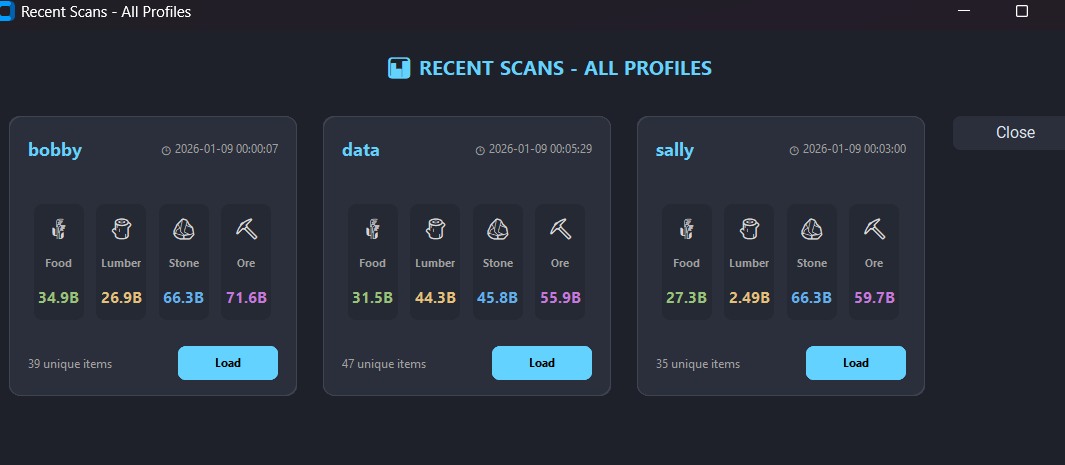
To aggregate data, hit the "Combine" button. This brings up the selection interface.
Select the specific scans you want to merge into a single report.
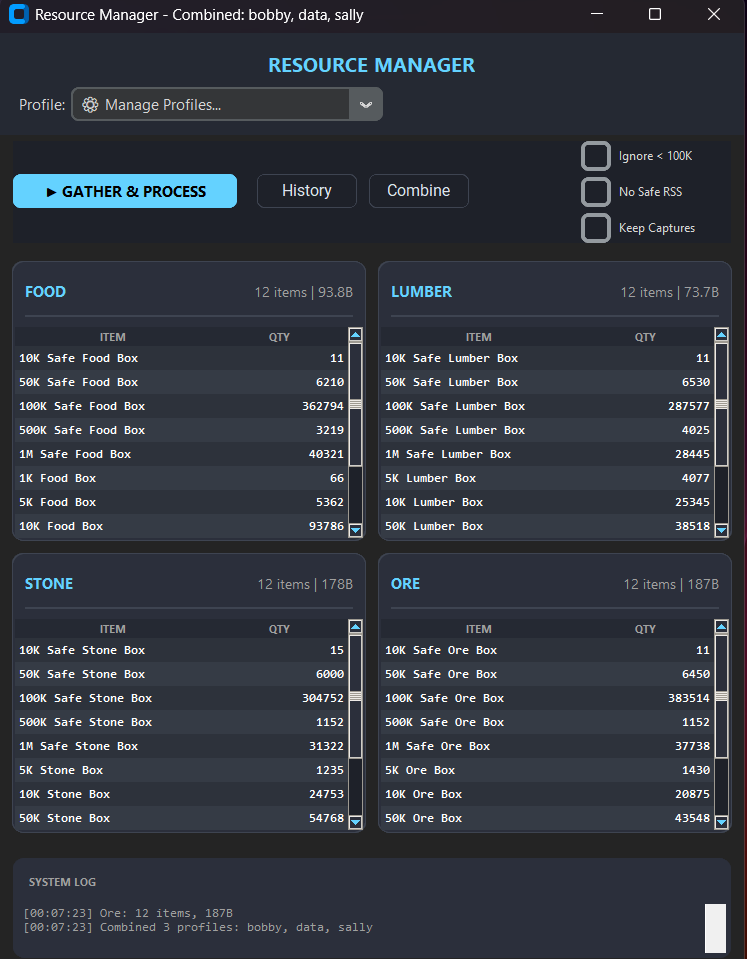
Refine your view with these powerful filters: